The best drawing tablets for students make digital sketching, note-taking, animation, and photo editing more accessible without overwhelming beginners or straining a limited budget. The right choice depends on software compatibility, workspace, portability, and whether you want a traditional pen tablet or an integrated display.
We selected 10 options across several price and feature levels, including compact tablets for casual practice, larger models with programmable keys, and the Wacom Cintiq 16 for students who prefer drawing directly on a screen.
Best 10 Drawing Tablets for Students Picks for 2026
Best Compact Pick

- Battery-free 4,096-pressure-level pen
- Bluetooth and USB-A connectivity
- Includes software access and training
Best For: Portable student drawing and note-taking
Best Large Workspace

- 10 x 6.25-inch active area
- 16,384 pressure levels with tilt support
- Eight customizable shortcut keys
Best For: Art students needing room for illustration
Best Wireless Upgrade

- 8.5 x 5.31-inch active area
- Bluetooth and USB-A connectivity
- Battery-free pen with 4,096 pressure levels
Best For: Students wanting more space with wireless use
Best Budget-Friendly Starter
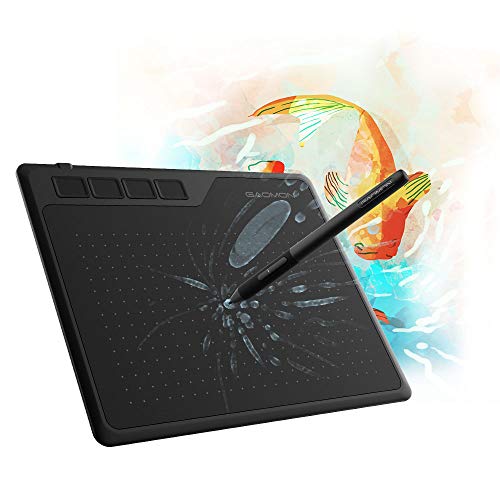
- 8,192 pressure levels with battery-free pen
- Four customizable express keys
- Compact 6.5 x 4-inch active area
Best For: Beginners, online classes, and portable use
Best Portable Pick
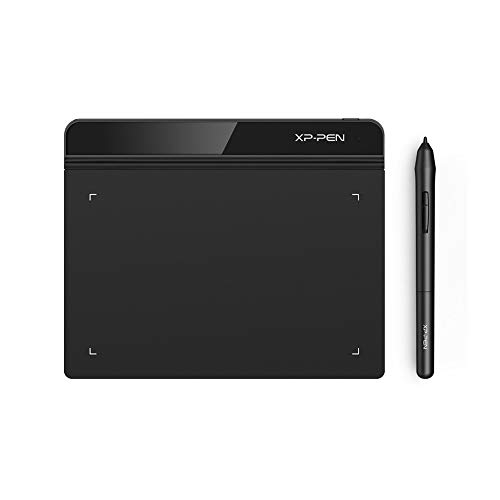
- 6 x 4-inch active area
- Battery-free 8192-level pen
- Works with Windows, Mac, and Chromebook
Best For: Portable drawing, online learning, and digital note-taking
Best Compact Compatibility
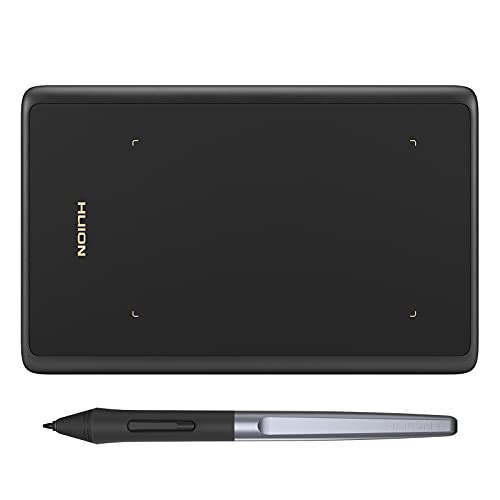
- Compact 4.17 x 2.6-inch workspace
- 8192-level battery-free pen
- Supports Windows, Mac, Android, and Linux
Best For: Small desks, mobile-compatible study setups, and beginner drawing
Best Shortcut Controls

- Four programmable express keys
- Battery-free 4096-level pen
- Supports Windows, Mac, Linux, and Android
Best For: Students who want quick shortcuts for drawing and online coursework
Premium Pick

- 16-inch 2560 x 1600 drawing display
- Pro Pen 3 with pressure and tilt support
- 99% DCI-P3 and 100% sRGB coverage
Best For: Serious art and design students
Budget Portable Pick
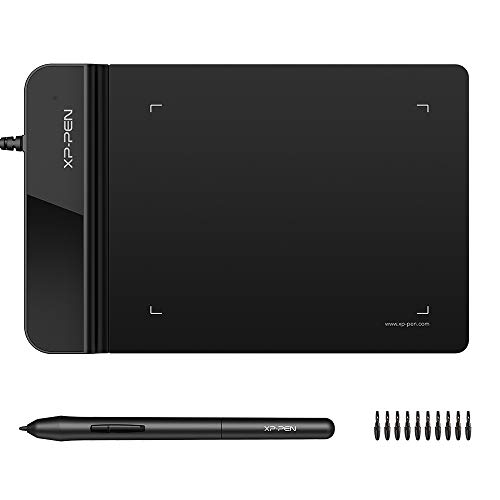
- Compact 4 x 3 inch active area
- Battery-free stylus with 8192 pressure levels
- 2 mm-thin design for easy portability
Best For: Basic drawing, OSU!, and online study tasks
Best All-Around Pad

- 6 x 4 inch active area with six shortcut keys
- Battery-free pen with 8192 pressure levels
- Compatible with Mac, Windows, Linux, and Android
Best For: Portable art, notes, editing, and online learning
Best Compact Pick – Wacom Intuos Small
The Wacom Intuos Small is a compact choice among drawing tablets for students who need reliable pen control without taking up much desk or backpack space. Its battery-free pen, Bluetooth connectivity, and compatibility with Windows, macOS, and ChromeOS make it practical for coursework, digital art, photo editing, and online education.
Best For: Students who want a portable, wireless tablet for everyday creative work and note-taking.
Pros:
- Battery-free EMR pen with 4,096 pressure levels for natural-feeling strokes.
- Bluetooth or USB-A connectivity supports flexible use at a desk, in class, or on the go.
- Four ExpressKeys provide customizable shortcuts.
- Includes access to creative software and Wacom online training after registration.
Cons:
- The 6 x 3.7-inch active area is smaller than the workspace on larger tablets.
- USB-A connectivity may require an adapter with some newer devices.
Choose the Intuos Small when portability and wireless convenience matter more than a larger drawing surface. It is a polished student option backed by broad software and operating-system compatibility.
Best Large Workspace – XP-Pen Deco 01 V3
The XP-Pen Deco 01 V3 stands out among drawing tablets for students who prefer a generous workspace and extensive shortcut controls. Its 10 x 6.25-inch active area, battery-free stylus, tilt support, and compatibility with computers, Android devices, ChromeOS, and Linux suit illustration, animation, remote teaching, and digital coursework.
Best For: Art students and beginners who want a large drawing area and flexible device compatibility.
Pros:
- Large 10 x 6.25-inch active area provides room for drawing and handwriting.
- Stylus offers 16,384 pressure levels and 60-degree tilt support for shading.
- Eight customizable shortcut keys can reduce menu navigation.
- Includes a glove, protective film, stand, spare nibs, and USB adapters.
Cons:
- It connects by USB rather than offering Bluetooth wireless connectivity.
- Android use may require aspect-ratio adjustment for precise mapping.
The Deco 01 V3 is a strong fit for students who find small tablets restrictive. Its spacious surface and broad compatibility offer room to grow from beginner sketches into more involved illustration and animation work.
Best Wireless Upgrade – Wacom Intuos Medium
The Wacom Intuos Medium is a practical upgrade for students who want more drawing room than a compact tablet provides. Its 8.5 x 5.31-inch active area, battery-free pen, Bluetooth support, and compatibility with Mac and PC make it suitable for digital art, editing, design, and school projects.
Best For: Students who want a dependable medium-size tablet with wireless connectivity.
Pros:
- Medium active area offers more room for drawing than the small Intuos model.
- Battery-free pen provides 4,096 pressure levels and pen-on-paper-style control.
- Bluetooth and USB-A connections support wireless or wired workflows.
- Four ExpressKeys and included software access add convenience for students.
Cons:
- The medium size is less compact for small backpacks or crowded desks.
- It is listed for Mac and PC compatibility rather than ChromeOS support.
For students who want Wacom’s straightforward workflow but need additional workspace, the Intuos Medium is a balanced choice. It adds drawing comfort while retaining wireless flexibility and useful shortcut keys.
Best Budget-Friendly Starter – GAOMON S620
The GAOMON S620 is a straightforward option for students searching for affordable drawing tablets for students, online classes, annotations, and beginner digital art. Its compact 6.5 x 4-inch active area, battery-free pen, customizable keys, and Windows, macOS, and Android compatibility make it easy to carry between home and school.
Best For: Beginners and students who need a portable tablet for drawing, signatures, teaching, or online meetings.
Pros:
- Battery-free pen provides 8,192 pressure levels for controlled strokes.
- Four customizable express keys support faster workflows.
- Compact, lightweight design is convenient for school bags and travel.
- Works with common art software and supports left- or right-handed use.
Cons:
- It is not compatible with iPad or iPhone devices.
- The 6.5 x 4-inch active area is smaller than the XP-Pen Deco 01 V3’s workspace.
- Connectivity is USB rather than Bluetooth.
The S620 keeps the essentials simple: a pressure-sensitive battery-free pen, shortcut keys, and a portable footprint. It is a sensible starting point for students who want to explore digital art or support remote learning without a larger tablet.
Best Portable Pick – XP-Pen StarG640
For students seeking drawing tablets for students that can handle art, note-taking, and online classes, the XP-Pen StarG640 offers a slim 6 x 4-inch workspace with a battery-free pen. Its broad compatibility includes Windows, Mac, and supported Chromebook devices.
Best For: Students who want a portable tablet for drawing, digital notes, remote learning, and document annotation.
Pros:
- Battery-free stylus supports uninterrupted drawing without charging.
- Works with Windows, Mac, and Chrome OS 88 or later.
- Supports online teaching, Microsoft Office apps, e-signatures, and photo editing.
- At only 2 mm thick, it is easy to carry between classes.
Cons:
- Requires a USB connection and a compatible computer or Chromebook.
- It does not include a built-in display for viewing artwork directly on the tablet.
The StarG640 is a practical student option when portability and a relatively generous active area matter. Its 8192 pressure levels and battery-free pen make it suitable for both creative assignments and everyday coursework.
Best Compact Compatibility – HUION Inspiroy H420X
The HUION Inspiroy H420X is a compact choice for students who need drawing tablets for students that fit small desks or travel bags. It pairs a battery-free, 8192-level pressure-sensitive pen with compatibility across Windows, Mac, Android, Linux, and common creative software.
Best For: Students and beginners who need a small tablet for drawing, annotation, e-learning, and mobile-compatible work.
Pros:
- Battery-free pen has 8192 pressure levels and 60-degree tilt support.
- Compact 4.17 x 2.6-inch active area suits limited desk space.
- Compatible with Windows, Mac, Android, Linux, and many major art applications.
- Two customizable pen buttons provide quick access to functions such as right-click or eraser.
Cons:
- The active area is smaller than the XP-Pen StarG640’s workspace.
- It is not compatible with iOS devices.
With plug-and-play setup, a lightweight design, and wide software support, the H420X is well suited to students who value flexibility over a large drawing surface. Its Android support also makes it useful for compatible mobile setups.
Best Shortcut Controls – HUION Inspiroy H430P
The HUION Inspiroy H430P gives students a compact drawing tablet with four programmable hot keys. For drawing tablets for students, those shortcut controls can make undoing, erasing, and scrolling more convenient during creative work, online classes, and document annotation.
Best For: Students who want programmable controls, a portable design, and support for art and education software.
Pros:
- Four programmable express keys support shortcuts such as undo, eraser, and scroll.
- Battery-free pen provides 4096 levels of pressure sensitivity.
- Supports Windows, macOS, Linux, Android, and left- or right-handed use.
- Compact 4.8 x 3-inch active area works well on smaller desks.
Cons:
- Its 4096 pressure levels are lower than the H420X and StarG640.
- The smaller active area may feel limiting for larger illustrations.
The H430P is a strong fit for students who prioritize quick controls and straightforward portability. It supports mainstream creative and education applications while remaining slim enough for travel or crowded study spaces.
Premium Pick – Wacom Cintiq 16
For students pursuing illustration, animation, design, or 3D work, the Wacom Cintiq 16 is a high-end choice among drawing tablets for students. Its built-in 16-inch screen provides a direct-on-canvas drawing experience, while the Pro Pen 3 offers detailed pressure and tilt control.
Best For: Serious art and design students who want a large, color-accurate display tablet for computer-based creative work.
Pros:
- 16-inch QHD display with 2560 x 1600 resolution for detailed artwork.
- Pro Pen 3 includes 8192 pressure levels, tilt support, and three shortcut keys.
- Wide color coverage with 99% DCI-P3 and 100% sRGB.
- Built-in fold-out legs provide a 20-degree working angle.
Cons:
- Requires a compatible Windows or Mac computer with DisplayPort Alt Mode or Thunderbolt 3/4 input.
- At 4.5 pounds, it is less portable than smaller screenless tablets.
- Some computers may need additional cables for connectivity.
The Cintiq 16 offers the most immersive setup here, especially for students who value drawing directly on a spacious, accurate display. Its computer requirements and larger footprint make it best suited to a dedicated desk rather than casual mobile use.
Budget Portable Pick – XPPen G430S
The XPPen G430S is a compact, no-screen option for students who need an inexpensive drawing tablet for students for sketching, online teaching, signatures, or OSU! gameplay. Its small footprint and battery-free stylus make it easy to carry and use with a Windows or Mac computer.
Best For: Students who prioritize portability, basic pen input, and OSU! gameplay over a large drawing surface.
Pros:
- Very slim 2 mm design is easy to carry in a backpack.
- Battery-free stylus provides 8192 pressure levels without charging.
- Supports both right- and left-handed use.
- 266 RPS report rate is designed for quick, smooth input.
Cons:
- The 4 x 3 inch active area may feel too small for detailed artwork.
- It does not support iOS or iPadOS.
- Mac users without USB-A may need an OTG adapter, and driver setup requires attention.
The G430S is best viewed as a simple, highly portable input pad rather than a full-scale art workstation. Its small active area suits quick tasks and rhythm gaming, but students creating larger or more detailed illustrations may prefer a roomier tablet.
Best All-Around Pad – HUION Inspiroy H640P
The HUION Inspiroy H640P balances portability and workspace better than the smallest entry-level pads. For students comparing drawing tablets for students, its 6 x 4 inch active area, customizable shortcut keys, and battery-free pen support drawing, note-taking, photo editing, and online coursework.
Best For: Students who want a portable screenless tablet with useful shortcuts for art, notes, editing, and remote learning.
Pros:
- Six customizable press keys can be assigned to commands such as undo, zoom, and save.
- Battery-free PW100 stylus offers 8192 pressure levels and pen-side buttons.
- Compact 6 x 4 inch active area fits crowded desks and backpacks.
- Works with Mac, Windows, Linux, and Android devices.
Cons:
- It does not support iPhone or iPad.
- It has no built-in display, so artwork appears on the connected device.
- Android compatibility is limited to devices running version 6.0 or later.
The H640P is a practical middle ground: more comfortable for drawing than the G430S while remaining light enough for campus use. Its shortcut keys and broad computer compatibility make it particularly useful for students switching between creative software, note-taking, and remote work.
How We Picked the Best Drawing Tablets for Students
We compared these Drawing Tablets for Students by focusing on the features that matter most in school, home, and beginner creative-workflow settings. These include pen pressure sensitivity, active drawing area, shortcut controls, connection options, operating-system compatibility, portability, and overall ease of use.
We also considered the different ways students work. A small, battery-free tablet may be ideal for a laptop and backpack, while a medium-size model can provide more comfortable hand movement for illustration. Display tablets offer a more direct drawing experience but typically cost more and require additional desk space.
Quick Comparison
| Tablet type | Best for | Main advantage | Potential limitation |
|---|---|---|---|
| Compact pen tablet | Beginners, travel, rhythm games | Affordable and portable | Smaller drawing area |
| Medium pen tablet | Illustration and coursework | More room for natural strokes | Less compact for backpacks |
| Shortcut-equipped tablet | Efficient creative workflows | Customizable controls | Requires setup and key mapping |
| Display tablet | Digital artists who want direct drawing | Pen-on-screen experience | Higher cost and desk-space needs |
Key Buying Factors for Drawing Tablets for Students
Size and Workspace
A 4-by-3-inch or similarly compact surface is easy to carry and sufficient for basic sketches, annotations, and osu! gameplay. A 6-by-4-inch or medium tablet gives the wrist more room and is generally more comfortable for sustained illustration work. Check your desk and backpack space before choosing.
Pressure Sensitivity and Pen Design
Pressure sensitivity helps vary line weight and opacity in supported applications. Higher numbers can be useful, but software support, tracking quality, and pen comfort matter just as much. Battery-free styluses are convenient because they do not need charging or replacement batteries.
Shortcut Keys and Connectivity
Programmable buttons can speed up undo, zoom, brush-size changes, and other repetitive commands. Bluetooth can reduce cable clutter, while a wired USB connection is often simpler and dependable for classroom or home use. Verify that the tablet works with your computer and preferred creative software.
Display Versus Screenless Design
Screenless tablets are usually lighter, less expensive, and easier to replace or transport. Display tablets feel more intuitive because you draw on the image itself, but they need more desk space and may involve extra cables, drivers, and power requirements.
Who Should Buy Which Drawing Tablets for Students?
Choose a compact entry-level tablet if you are new to digital art, use a laptop, or need something affordable for school assignments and travel. Choose a medium tablet with shortcut keys if illustration, animation, or frequent editing is a regular part of your coursework. Choose a Bluetooth model if reducing cables and carrying the tablet between classes matters. Choose a display tablet if you already know you prefer direct-on-screen drawing and have the budget and desk space for it.
Before buying, confirm current driver support, included software, connection requirements, and return policies. A well-supported tablet that fits your workflow is usually a better student purchase than a model selected solely for the highest pressure-sensitivity rating.
